

Create an agent
- New agent
- Start from a template (Healthcare, Insurance, Financial Services, Hospitality & Travel) or create from scratch
- Duplicate an existing agent, or import a previously exported configuration (see Import, export, and duplicate)
- If you plan to dispatch outbound calls or use human transfer tools, attach an outbound connection (see Telephony)
The agent editor
Opening an agent takes you to the editor, organized into seven tabs: Design, Variables, Models, Tools, Telephony, Settings, and Versions. The header always shows Test, Calls, and Save, plus a menu with Duplicate, Download configuration, and Delete.Design
Shape the agent’s identity, system prompt, and greetings. Choose between a single greeting or directional greetings — separate inbound, outbound, and web/default greetings for phone versus browser sessions. While editing the prompt or a greeting, an Insert variable hint follows your cursor so you can drop in template variables.Variables
Define values the agent can use before and during calls:- Inputs — template variables passed when a call is dispatched. Each input can be required or optional before a call starts, and can carry a default value. Reference them as
{{name}}in prompts, greetings, and supported tool fields. - Call memory — named fields (with a description of what to capture) that the agent fills in and updates during a single call.
Models
Choose how the agent listens, reasons, and speaks: speech recognition (STT), language model (LLM), and speech synthesis (TTS) plus the voice for the selected TTS model. Two collapsible sections cover the rest:- Fallback routing — ordered backup models used when a model fails or times out. See Fallbacks and timeouts for how they behave at runtime.
- Advanced model settings — JSON provider overrides that are preserved on save.
Tools
Attach published tools from your organisation library or select individual tools from a connected MCP server. Each attachment can set model instructions, a pre-action message, and supported argument or configuration values. See Tools for the publish and attachment lifecycle.Telephony
Assign the phone connections the agent uses: an inbound connection to route incoming calls to this agent, and an outbound connection for outbound calls and human transfers. See Telephony for creating connections and assignment rules.Settings
Default call behavior: enable interruptions (let the caller speak over the agent), play failure audio (a short message before ending the call after a technical problem), and idle nudges (recovery prompts when the caller goes quiet, with configurable delays and texts). The danger zone at the bottom deletes the agent.Versions
Every save creates a version. The timeline shows each version with its source (for example, restores are marked Restored) and lets you:- Add a short label to a version so you can find it later
- Inspect a readable diff of what changed, versus the previous version or the current configuration
- Restore a version: the dialog previews the restore and lists anything that needs attention before you confirm. Save or discard unsaved changes first.
- Download any version’s configuration as JSON
Test your agent
The Test button in the editor (orhttps://app.slng.ai/agent-infra/<agent_id>/test) opens the live test panel with two modes:
- Web session — talk to the agent from your browser microphone, no telephony required
- Outbound — place a real phone test call; enter the destination number. This requires an outbound connection (the panel links you to the Telephony tab if none is attached).
{{name}} token, whether it’s optional, and any default. During the session you get a live transcript that includes tool executions (which tool ran and whether it succeeded), and a Recent calls list that links to the details of previous runs.
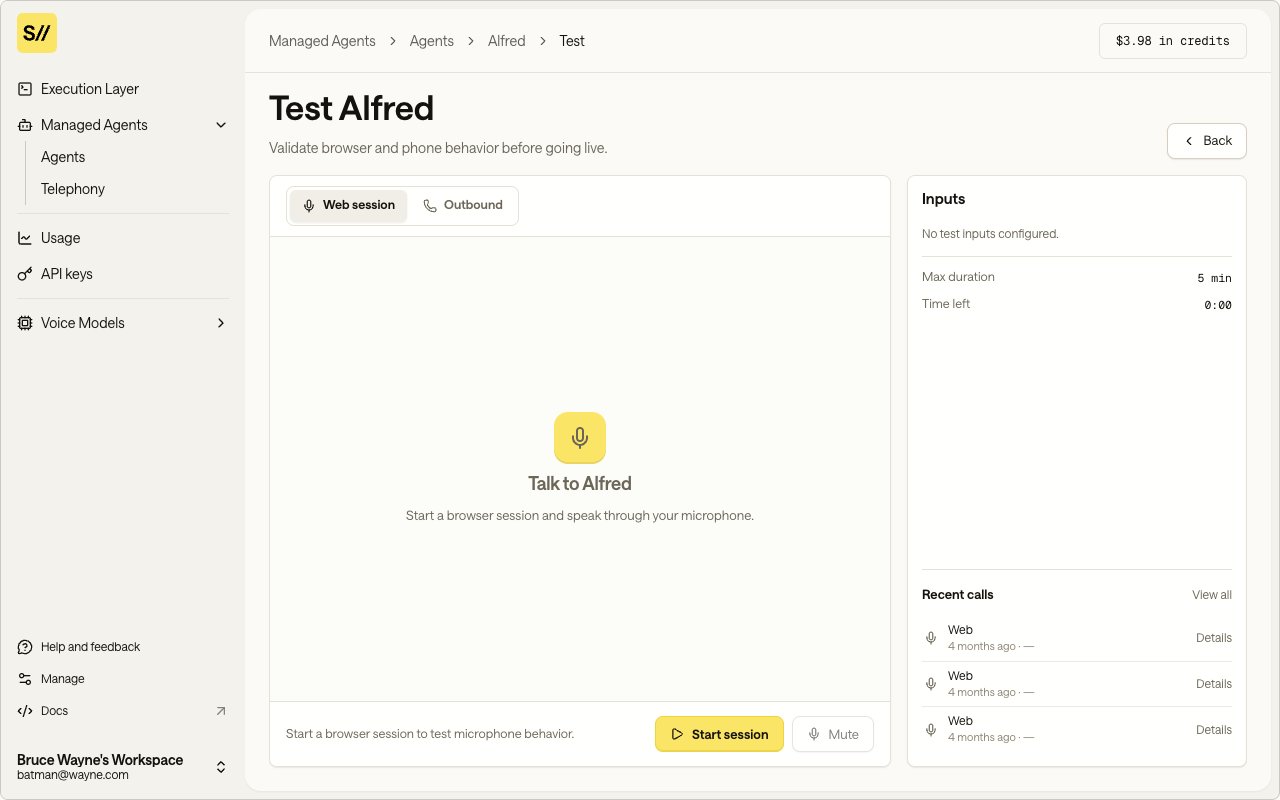
Test your agent directly in the browser
Import, export, and duplicate
- Export — in the editor’s header menu, choose Download configuration to save the agent as a JSON file.
- Import — on the agents list, choose Import JSON and pick an exported file. If the configuration needs something your workspace must provide — for example, an outbound connection for a human transfer tool, or a new name because the old one is taken — the import dialog asks you to resolve it before creating the agent.
- Duplicate — from the agents list or the editor menu. The dialog prefills the name as
<Name> Copy. The outbound connection is carried over, but the inbound connection is not copied — an inbound connection can only belong to one agent — so assign one on the copy’s Telephony tab if you need inbound calls.
Calls
Each agent has a dedicated calls page where you can monitor and review all call activity:- Calls list:
https://app.slng.ai/agent-infra/<agent_id>/calls - Call details:
https://app.slng.ai/agent-infra/<agent_id>/calls/<call_id>
Call list
The calls list shows all calls for an agent (both inbound and outbound), with the most recent calls first. You can filter by status to find active, completed, or failed calls, and use Export CSV to download the list for analysis.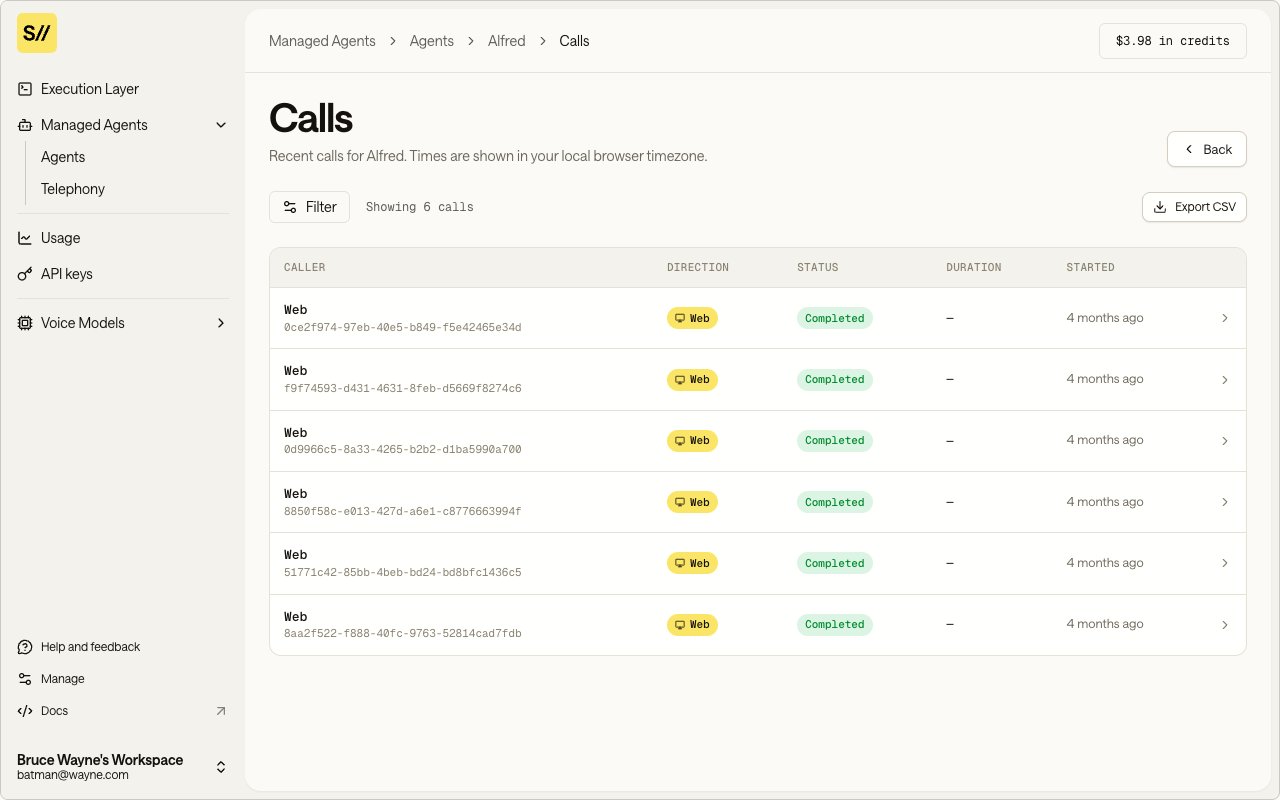
Monitor all inbound and outbound calls
Call details
Each call record includes:- Status: current call state (e.g., dispatched, active, completed, failed)
- Phone number: the E.164 number involved in the call
- Template arguments: the values passed for template variables (e.g.,
patient_name,practice_name) - Rendered prompt: the final system prompt after template variables are resolved
- Timestamps: when the call was created and last updated
- Session report: when available, includes transcript and session-level metadata
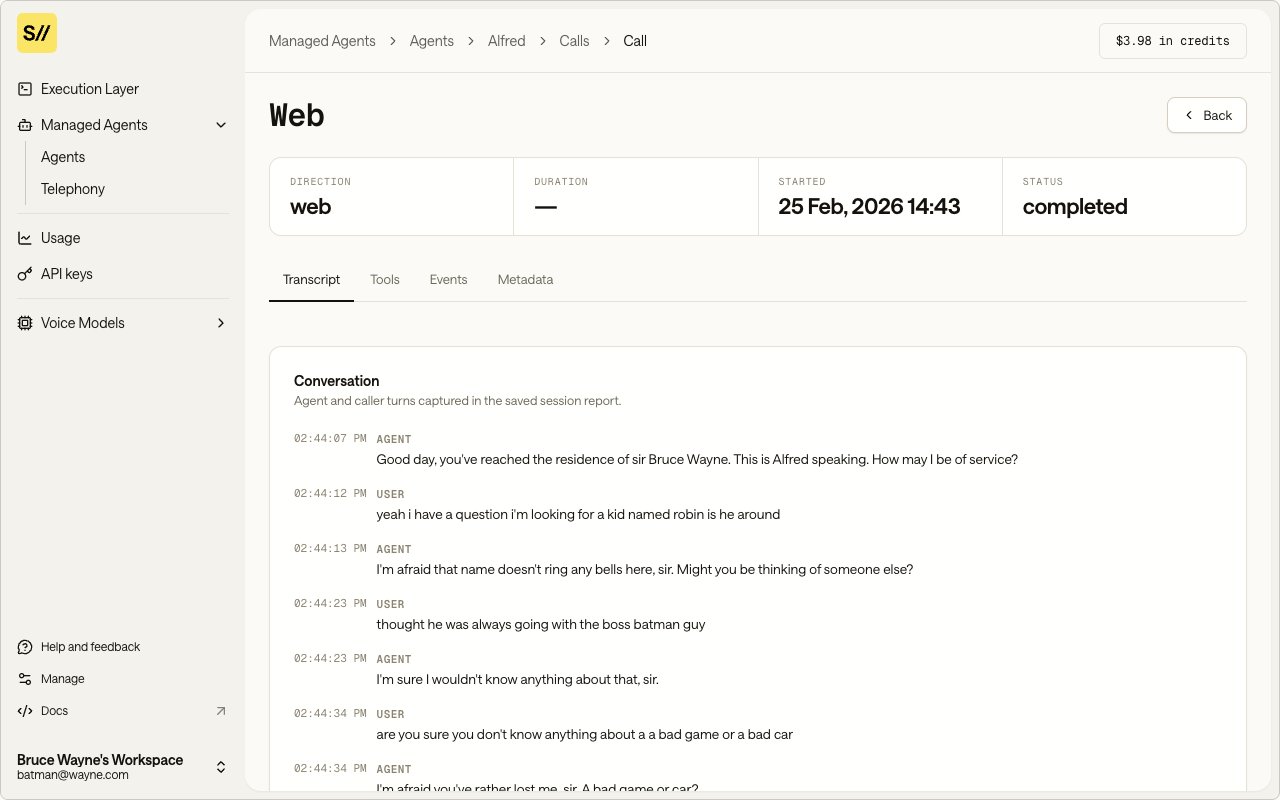
Review transcript, status, and session metadata for each call
Dispatching outbound calls
You can dispatch outbound calls from the Agent Infra UI or programmatically via the API. Outbound calls require the agent to have an outbound SIP trunk configured. See Telephony.Everything in Agent Infra maps to public API endpoints — see the Voice Agents API tab for a complete reference, starting with Create agent, Update agent, and List agents.